YouCam Perfect - Photo Editor
Perfect Mobile Corp.Photography
3.939.36K Reviews
- Version
- Varies With Device
- Installs
- 100.00M
- Age Rating
- Teen
Screenshots

Our Review of YouCam Perfect - Photo Editor
 Analysis by Appyee
When I choose a photo editor, I first ask what I actually want to do with it. If the goal is to make a selfie look a little more polished, remove an unwanted detail, or give a casual shot a playful finish, I want tools I can find without a long editing session. If I need careful color work or precise control over every adjustment, I would choose a different kind of editor. That distinction is useful when deciding whether YouCam Perfect belongs in your everyday photo toolkit.
This is a free photography app from Perfect Mobile Corp., and it has been around since February 27, 2014. It is rated Teen, with a 3.9 average from around 2.1 million ratings and over 100 million installs. Those figures suggest broad reach, but they do not tell me whether its style suits you: the practical question is whether you like quick, visible edits more than a slower, hands-on workflow.
Choose it for quick portraits and playful edits
The app makes the most sense when I want several kinds of portrait-focused editing in one place. A selfie can be cropped, retouched, and dressed up without moving between separate tools. The object-removal and enhancement options also make it useful for everyday pictures that have one distracting flaw, rather than photos that need a complete professional-style treatment.
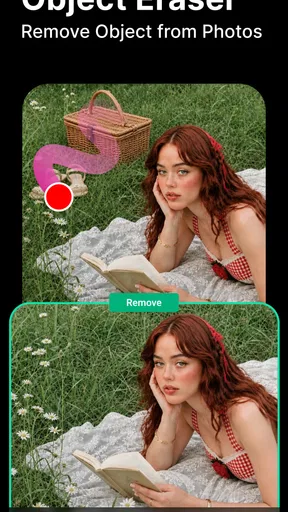
For example, imagine taking a group photo at lunch and noticing a stray item on the table behind you. I would try removing that distraction, check the edges around the area, and then make any portrait adjustments lightly. The important step is to inspect the result at full size before sharing: automatic edits can look convincing in a small preview yet leave a smudge or an oddly softened edge when you zoom in.
That kind of check is one of the more useful habits with an app built around fast effects. I would save the original or work from a duplicate when I care about keeping the untouched shot. It gives me room to compare versions and back away from an edit that has gone too far, especially with face reshaping or skin smoothing.
Where its toolkit is strongest
The appeal here is variety rather than deep manual control. Retouching, enhancement, background changes, object removal, stickers, frames, and the Magic Brush give me several ways to change the mood of a picture. I can keep a photo fairly natural or lean into a more decorative look, though the number of effects can make it tempting to add more than the image needs.
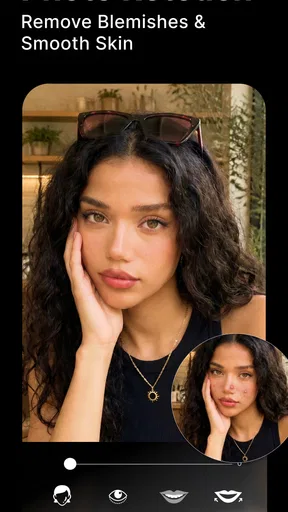
My advice is to decide what should remain believable before reaching for a beautifying tool. A small adjustment to skin or teeth can tidy a portrait, while repeatedly reshaping features risks making the person look unlike themselves. I would also compare the edit with the original before exporting; flipping between the two is a simple way to catch over-smoothing that becomes easy to miss while working.
Background replacement calls for a different check. Hair, loose clothing, and other detailed edges are difficult in many automatic cutouts, so I would test the result around those areas before using it for a profile picture or a polished post. Using one of my own backgrounds can make the composition feel more personal, but the lighting and perspective still need to look plausible. A dramatic replacement may be fun, yet it is not always the best choice for a photo meant to feel candid.
What to expect from the experience
The interface is designed to make its tools approachable, which is useful if I do not want to learn a complicated editing workflow. Its range also means the app can serve someone who mostly edits selfies but occasionally wants to remove an object or add a visual flourish. I would not treat that breadth as a promise that every edit will be equally precise; the result depends on the image and on how subtle I keep the changes.
The app is free to download, while in-app purchases range from $0.69 to $119.99 per item. I would explore the free experience first and check the price shown in the app before committing to any paid feature. That matters if you only need an occasional cleanup: a one-off edit may not justify a purchase, while someone who regularly uses a particular premium tool may judge the value differently.
When another editor is a better fit
If I were editing a landscape for careful color balance, preparing a batch of consistent images, or trying to preserve a natural documentary look, I would compare it with a more photography-focused editor. Those tools often make detailed adjustments the center of the experience. YouCam Perfect is more appealing when portrait retouching and decorative options are the priority, not when I want every tonal choice to be deliberate.
A basic gallery editor may be enough for someone who only crops, straightens, or makes a small brightness adjustment. That route avoids learning extra effects and is a sensible choice if elaborate portraits do not interest you. On the other hand, moving between separate apps for retouching, background edits, and stickers can become tedious; the convenience of keeping those tasks together is one of this app’s clearest strengths.
Switching from another editor is not a technical commitment so much as a change in habits. I would bring over a few ordinary photos and try the same small set of edits in both apps: crop, clean up one distraction, and make one portrait adjustment. Compare the results at full size, not just in a social-media preview. That quick test reveals whether you prefer YouCam Perfect’s direct, effect-rich approach or the other editor’s controls, without making your whole library part of the experiment.
A few practical ways to get better results
For a natural-looking portrait, I would make one adjustment at a time and pause between them. Retouching, reshaping, and filters can each seem modest on their own, but their combined effect may change the face more than intended. I would keep a copy before experimenting and use the original as a reference, rather than judging the result only by whether it looks smoother.
For object removal, choose a photo where the unwanted detail is small and surrounded by a fairly simple area when possible. A plain wall or tabletop is easier to assess than a patterned scene, where repeating lines can reveal that something was erased. If the repair looks strange, a tighter crop may be more convincing than repeated attempts to remove every trace.
For a new background, choose an image with a compatible light direction and similar visual scale. This will not fix every cutout edge, but it can make the composite feel less pasted on. I would also use the Magic Brush and animated decorations with a clear purpose: a couple of accents can give a casual post character, while too many compete with the subject.
Who should keep it, and who should pass
I would recommend trying YouCam Perfect if you regularly edit selfies, like experimenting with backgrounds, or want a convenient set of portrait and cleanup tools without a specialist workflow. It also suits someone who enjoys decorative effects and is willing to check the result carefully before sharing. Its Teen age rating is worth noting for families considering it for younger users.
I would skip it if I dislike beauty filters, want precise control over photographic color, or mainly need a simple crop-and-brightness tool. It may also frustrate anyone expecting automatic object removal or background replacement to work perfectly on every picture. Those limitations do not make the app useless; they define the kind of editing where it feels most worthwhile.
In the end, I see it as a flexible portrait editor for quick, expressive changes, not a replacement for every photo workflow. Start with an everyday image, make a restrained edit, and inspect it closely before deciding whether the app’s style fits you. If you enjoy that balance of retouching and playful tools, it is an easy one to keep around; if you want quieter, more exact adjustments, a simpler or more manual editor will likely suit you better.
Hey there, photo editing enthusiasts! Today, I'm diving into the world of YouCam Perfect - Photo Editor, a nifty app that promises to transform your everyday pictures into works of art. I've been playing around with it for a while, and I'm here to spill the beans on everything you need to know. If you're all about capturing those perfect Instagram moments or just want to spruce up your photo gallery, this app might just become your new best friend.
Getting Started with YouCam Perfect
First things first, downloading YouCam Perfect is a breeze. It's available on both Android and iOS, so no one gets left out. Once you've got it installed, you're greeted with a sleek and user-friendly interface. The home screen gives you easy access to all the features, neatly categorized for your convenience. Honestly, I appreciate how intuitive it is — no need to dig around or get lost in complicated menus.
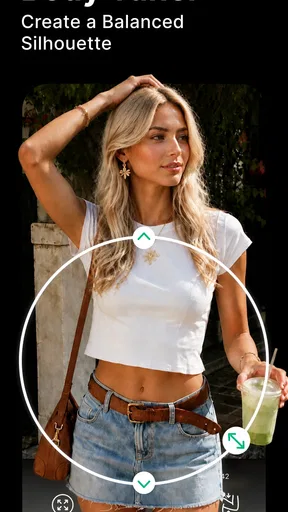
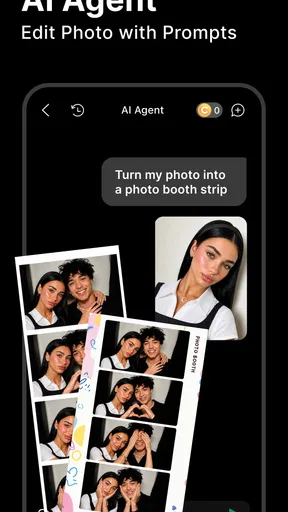
Now, let's talk about what you can do with this app. From basic edits like cropping and rotating to more advanced features like body reshaping and object removal, this app pretty much has it all. You can even add some flair with animated stickers and frames. The options seem endless, and I found myself experimenting more than I initially planned. It's easy to lose track of time when you're having fun!
Features That Stand Out
One of the standout features for me has to be the "Magic Brush." Seriously, this tool is a game-changer. It allows you to add some awesome effects with just a swipe of your finger. Whether you want to add sparkles, hearts, or even stars, the Magic Brush has you covered. It's perfect for adding a touch of whimsy to your photos.
Another cool feature is the "Photo Backgrounds," which lets you change the background of your images with ease. Whether you want a beach sunset or a city skyline, the app offers a variety of options. It's like having a green screen in your pocket. And if you're feeling creative, you can even use your own photos as backgrounds.
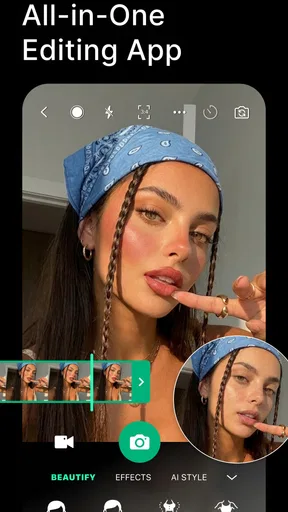
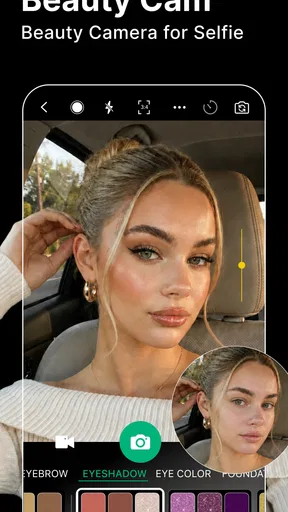
For those who love selfies, the "Beautify" tool is a must-try. You can smooth skin, whiten teeth, and even reshape facial features. It's like having a digital makeup artist at your fingertips. And don't worry, the results are subtle enough to keep things looking natural.
Performance and Usability
In terms of performance, YouCam Perfect runs smoothly without any noticeable lags. The app updates frequently to fix bugs and introduce new features, which is always a plus in my book. The editing process is quick, and exporting your photos to your gallery or social media is seamless.
One thing I appreciate is the app's community. There are plenty of tutorials and tips available to help you get the most out of the app. Whether you're a beginner or a seasoned pro, there's always something new to learn. Plus, the community is super supportive, which makes the whole experience even better.
Final Thoughts
All in all, YouCam Perfect is a solid choice for anyone looking to enhance their photos on the go. It's packed with features that cater to all levels of photo editing expertise. Whether you're looking to make minor tweaks or completely transform your images, this app has something for everyone.
So, if you're ready to take your photos to the next level, why not give YouCam Perfect a whirl? It's free to download, with some additional features available through in-app purchases. But even the free version offers plenty to keep you busy. Happy editing, and may your photos be as perfect as you imagine!
Verdict
Strengths of YouCam Perfect - Photo Editor
- User-friendly interface for quick edits.
- Wide range of filters and effects.
- Real-time beauty camera feature.
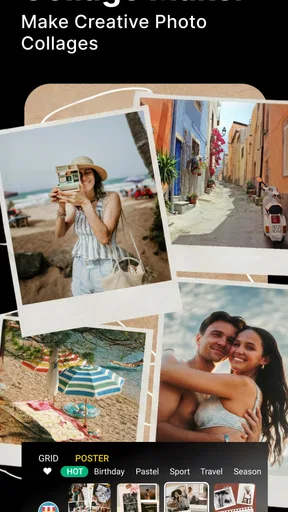
- Collage maker with customizable layouts.
- Supports high-resolution photo editing.
Limitations of YouCam Perfect - Photo Editor
- Contains in-app purchases for premium features.
- Some features require internet connection.
- Occasional ads may disrupt editing flow.
- Limited text options for captions.
- Watermark on free version exports.
Other Releases by Perfect Mobile Corp.
View All
YouCam Makeup: Face Editor
Photography4.0

YouCam Video: AI Video Editor
Video Players & Editors3.8
Similar Picks in This Category
View All
Google Photos
Google LLC4.4

Gallery
Google LLC4.2

Picsart AI Photo Editor, Video
PicsArt, Inc.3.9

B612 AI Photo&Video Editor
SNOW Corporation4.1

BeautyPlus-Selfie Photo Editor
PIXOCIAL TECHNOLOGY (SINGAPORE) PTE. LTD.4.5

Remini - AI Photo Enhancer
Bending Spoons4.1
You May Also Like
View All
Frequently Asked Questions
What features does YouCam Perfect offer for photo editing?
YouCam Perfect offers a comprehensive suite of editing tools, including beautification features, object removal, background change, and over 200 effects and filters. It also provides advanced tools like HDR effects, collage creation, and animation effects, making it a versatile app for both casual users and photography enthusiasts.
Is YouCam Perfect free to use, or are there in-app purchases?
YouCam Perfect is free to download and use, offering many essential features without cost. However, it includes in-app purchases for premium features, such as additional filters, effects, and enhanced editing tools. A subscription option is available for users who want full access to all features and content.
How does YouCam Perfect ensure user privacy and data security?
YouCam Perfect takes user privacy seriously by implementing strict data protection measures. The app does not store personal photos on its servers and complies with privacy laws, such as GDPR. Users are encouraged to review the privacy policy for detailed information on data handling practices.
Does YouCam Perfect require an internet connection to function?
YouCam Perfect can be used offline for most basic editing tasks, such as applying filters and making simple adjustments. However, to access certain features like downloading new effects or sharing edited photos directly on social media, an internet connection is required.
Can YouCam Perfect be used on all types of smartphones?
YouCam Perfect is compatible with both Android and iOS devices. It supports a wide range of smartphones, but users should ensure their device meets the minimum system requirements for optimal performance. Regular updates are provided to maintain compatibility with the latest operating systems.
